Docs / 01
Install and activate
Get the installer from your account, install it with your editing program closed, then activate it with your key.
Written for Ball Tracer 0.2.4 What changed
On this page
Before you start
- DaVinci Resolve Studio. The free edition of Resolve does not load OpenFX plug-ins, so Ball Tracer cannot appear in it.
- Adobe Premiere Pro. Tested on Premiere Pro 26.5.2 (Premiere Pro 2026).
- Windows 10 or 11, 64-bit. There is no Mac build yet.
- An administrator prompt you can allow.
Ball Tracer comes as two separate installers, one for DaVinci Resolve Studio and one for Premiere Pro. One key covers both. The steps below are for the program chosen in the Steps for switch under the heading.
The installer is not code-signed yet. Windows shows a blue Windows protected your PC
screen and says the publisher is unknown. Choose More info, then Run anyway.
Get the installer
- Sign in with the account you bought with.
- Open your account page or the Download page.
- Press Download for Resolve. You get
BallTracer-0.2.4-Setup.exe, about 57.1 MB. - Press Download for Premiere Pro. You get
BallTracer-Premiere-0.2.4-Setup.exe, about 56.8 MB.
The download link stopped working
Each press makes a fresh link that works for five minutes. Press the button again.
Why is it not a public download?
Only an account that owns a licence can download it. Right after paying, the thank-you page offers it too.
Keep a copy of the installer
The account always offers the newest version, and each key covers updates for 12 months. See Updates.
Install
- Close DaVinci Resolve completely.
- Close Premiere Pro, After Effects and Media Encoder. All three load plug-ins from the same folder and keep them open while they run.
- Double-click
BallTracer-0.2.4-Setup.exeand allow the administrator prompt. - Double-click
BallTracer-Premiere-0.2.4-Setup.exeand allow the administrator prompt. - Press Next, accept the licence agreement, and press Next again.
- On
Ball Tracer is installed
, press Finish. - Start Resolve. Ball Tracer is under Effects Library → OpenFX → Ball Tracer.
- Start Premiere Pro. Ball Tracer is in the Effects panel under Video Effects → Ball Tracer → Ball Tracer.
It says
DaVinci Resolve is running.
Close Resolve and run the installer again. Resolve keeps the plug-in file open while it runs, and only looks for plug-ins when it starts.
It says
Still running:
and names a programClose Premiere Pro, After Effects and Media Encoder completely, then run the installer again. All three keep the plug-in file open while they run.
A page says
Ball Tracer is already installed
Repair is selected: press Next. Repair writes the files again and clears Resolve's plug-in cache; use it to update, or when Ball Tracer stopped appearing. Reinstall removes the installed copy first; use it when a repair did not help. Remove uninstalls. Your licence stays either way.
A page says
Ball Tracer for Premiere Pro is already installed
Choose Repair and press Next. Repair writes the plug-in files again over the top; use it to update, or when Ball Tracer stopped appearing in Premiere Pro. Reinstall removes the installed copy completely first, then installs fresh; use it when a repair did not help. Remove uninstalls. Your licence stays on this computer either way, so it does not cost you an activation.
There is no plug-in cache to clear. Every install replaces everything in the plug-in folder, so no old file is left behind.
It says
DaVinci Resolve was not found on this computer.
Resolve is not in its usual folder. Press OK to carry on if you are about to install Resolve Studio.
It says
Adobe's shared plug-in folder was not found
Premiere Pro creates that folder. Install Adobe Premiere Pro first, then run the installer again. A different message, that Premiere Pro was not found in its usual place under Program Files, is only a notice: the installer carries on.
Where it installs
Into
C:\Program Files\Common Files\OFX\Plugins\BallTracer.ofx.bundle, a folder every OpenFX program shares. IntoC:\Program Files\Adobe\Common\Plug-ins\7.0\MediaCore\BallTracer\. Premiere Pro, After Effects and Media Encoder all load plug-ins from that folder. The uninstaller and the licence agreement go to a small second folder,C:\Program Files\Ball Tracer for Premiere Pro. There is no folder to choose. The licence agreement covers the licence itself; the terms of sale are on the Terms page.Resolve starts slowly the first time
It is looking at its plug-ins again. The category and the effect in it are both called Ball Tracer.
It could not clear Resolve's plug-in cache
See Troubleshooting.
Ball Tracer also shows in After Effects and Media Encoder
All three read the same plug-in folder, so they list the effect too. Use it in Premiere Pro: it does not work in After Effects.
Ball Tracer is not in the Effects panel
See Troubleshooting.
Activate your licence
- On your account page, press Copy beside your key.
- In Resolve, add Ball Tracer to a clip. The Licence group is open, under Status.
- In Premiere Pro, drag Ball Tracer onto a clip, select the clip and open Effect Controls. Status is the first row, and the Licence group is open under it.
- Paste the key into Licence Key and press Enter.
- In the Licence group, press the button in the Activate row. A small window opens: paste your key into it.
- Press Activate. This needs an internet connection, once.
- Press Activate in that window. This needs an internet connection, once.
- Licence Status reads
Activated - thank you.
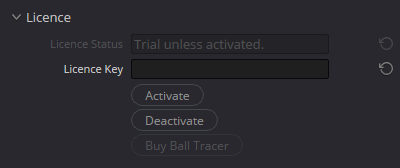
Before you activate
Ball Tracer draws the word TRIAL across every frame, and Licence Status reads
Trial - enter a licence key.
Activating removes the mark from new frames.The mark is still on frames you already played
Resolve keeps frames it has already drawn. Use Playback → Delete Render Cache and they are drawn again without the mark.
Premiere keeps frames it has already rendered. If one still shows the mark, use Sequence → Delete Render Files and it is drawn again without the mark.
Licence Status shows something else
Look it up in Licence messages.
It says
Licence is for another app.
The licence saved on this computer belongs to Ball Tracer in another program. Paste your key into the Activate window and press Activate.
The window says it is waiting for the licence server
It counts the seconds while it works, and has a Stop waiting button.
The hint on Licence Key mentions an email
That is older wording. Keys are never emailed; your key lives on your account page.
The key window mentions an email
Keys are never emailed. Copy your key from your account page and paste it into the window.
Your key is not stored in your project
The key field is cleared after every press, and the key is never written into the project. This was checked against a saved project, an exported
.drp, Resolve's databases, the Fusion preferences and the logs. Sending someone a project does not send your key.Where your key is kept
Effect Controls has no row for the key. It sits in the box of the Activate window while you paste it, and the activation is kept in a licence file in
%APPDATA%\BallTraceron this computer.
Updates
Each key includes 12 months of updates from the day you buy; your account page shows the date. After that, the version you have keeps working.
- Download the new installer from your account.
- Close Resolve and run it.
- Close Premiere Pro, After Effects and Media Encoder, then run it.
- On
Ball Tracer is already installed
, keep Repair and press Next. - On
Ball Tracer for Premiere Pro is already installed
, choose Repair and press Next.
It says
Key too old for this version.
That version came out after your updates ended, and the TRIAL mark comes back on new frames. Install the copy of the installer you kept.
A window says a newer Ball Tracer is available
Ball Tracer can show it before a trace, with buttons to download the update, to be asked later, or to skip this version. Download update opens the download page.
Move to another computer
A licence activates Ball Tracer on two computers at a time. One key covers DaVinci Resolve and Premiere Pro, and each program counts on its own: both on the same computer take one activation each.
- On the old computer, press Deactivate. If you use both programs there, press it in each.
- On the new computer, install and activate as above.
The old computer is gone or broken
On your account page, press Release beside it, then activate the new one. The released computer keeps working until its next check with the licence server: within about 7 days of use while it is online, or up to 30 days if it stays offline. The TRIAL mark returns the next time Resolve starts after that check.The TRIAL mark returns the next time Premiere Pro starts after that check.
A computer that ran both programs holds two activations: release both.
It says
All activations in use.
The old computer still holds the activation. Deactivate or release it first.
Ball Tracer in Resolve and in Premiere Pro on one computer use one activation each, so a computer with both holds two.
Does uninstalling free the activation?
No. Deactivate first. Licence Status then reads
Deactivated. Trial mode.
and the TRIAL mark returns on that computer. Do this in each program you activated.
Replace your key
If someone else has seen your key, press Replace key on your account page. You get a new key for the same licence, activations and updates.
What happens to the old key
It stops working. Every computer using it has to be activated again with the new key. Until then each one keeps running until its next check with the licence server: within about 7 days of use while it is online, or up to 30 days if it stays offline. The TRIAL mark returns the next time Resolve starts after that check.The TRIAL mark returns the next time Premiere Pro starts after that check.
Work offline
After the first activation you can work offline for up to 30 days at a stretch. The licence checks in about every 7 days when it can reach the internet.
It says
Offline too long - go online.
Connect to the internet and restart ResolvePremiere Pro.
It says
Check the computer clock.
The clock is earlier than the last licence check. Correct the date and time, then restart ResolvePremiere Pro.
Uninstall
- Leaving this computer for good? Press Deactivate first.
- Close Resolve.
- Close Premiere Pro, After Effects and Media Encoder. The uninstaller will not run while any of them is open.
- Open Settings → Apps → Installed apps, find Ball Tracer 0.2.4 and choose Uninstall.
- Open Settings → Apps → Installed apps, find Ball Tracer for Premiere Pro 0.2.4 and choose Uninstall.
On Windows 10, or from the installer
On Windows 10 the list is under Settings → Apps → Apps & features. Running the installer and choosing Remove does the same.
Your licence stays
It is kept in
%APPDATA%\BallTracer, which the uninstaller does not touch. Installing again on the same computer does not use another activation.
Quick reference
| What | Where |
|---|---|
| Where it lives | Effects Library → OpenFX → Ball Tracer |
| Where it lives | Effects panel → Video Effects → Ball Tracer → Ball Tracer |
| Panel order | Status, Licence, Shot, Camera, Trace, Fix With Ball Marks, Style, AutoZoom, Trace Settings, Path Handles, Look Details, Reveal Timing, Hide and Masks, Support |
| Tracking a long shot | Playback → Timeline Playback Resolution → Half |
| Tracing a small or distant ball | Playback → Timeline Playback Resolution → Full |
| Your key and the installer | Your account page |
| Licence folder | %APPDATA%\BallTracer |
| Support bundle | Prepare Debug Log, in the Support group |