Docs / 02
Your first trace
Follow the headings from top to bottom. Most shots need only the first four.
Written for Ball Tracer 0.2.4 What changed
On this page
Add the effect
- On the Edit page, drag Ball Tracer from Effects Library → OpenFX → Ball Tracer onto the clip.
- Open the Inspector. Status, the top row, reads
No tracking yet.
- In the Effects panel, drag Ball Tracer from Video Effects → Ball Tracer → Ball Tracer onto the clip in the timeline. Put it first in the clip's effects: an effect above it, such as Lumetri, Crop or Scale, changes the picture Ball Tracer compares, and the trace stops.
- Select the clip and open Effect Controls. Status, the first row, reads
No tracking yet.
The whole sentence also shows on the Program Monitor. Everything Ball Tracer draws there, such as the markers below, shows only while the effect is selected.
Use the clip as it was filmed. Not a compound clip, not stabilised, and without a speed change. Ball Tracer does not support these yet, and the trace fails on them. A zoom or position in the Inspector that stays the same over the clip is fine, and so is a grade or a LUT; a zoom that changes over the clip is not.
Use a plain clip. Ball Tracer stops, and says why, on a nested sequence, an adjustment layer, a title, graphic or colour matte, a clip that is offline or has only its proxy online, a reversed clip, a clip with Time Remapping and a frozen clip. A trimmed clip and a plain speed change, such as 50 %, are fine.

Mark the ball at impact
- Park the playhead on the frame the club meets the ball.
- Drag the amber Ball At Impact ring onto the ball.
- Double-click the ring. It turns white: the impact frame and the ball's position are recorded.
- Park the playhead on the frame the club meets the ball.
- In the Program Monitor, drag the impact ring onto the ball. Until it is set it is a dashed ring, beside the middle of the picture.
- Double-click the ring. It becomes a thick red ring with a dot: the impact frame and the ball's position are recorded.
How to tell the impact is set
A badge at the top of the Program Monitor shows IMPACT and LANDING. Each one shows its frame number and a dot once it is set, and a dash while it is not. In Effect Controls, the row Use Recorded Impact reads Impact: frame N (set) or Impact: not set. To clear the impact, double-click the ring again on the frame it is set on. Dragging the ring only moves it.
The landing is visible in the shot
Use the Landing marker as well. Park on the frame the ball lands and drag the marker onto the ball. There is no need to double-click it: it turns on by itself when you click or drag it. Double-click it only to change which frame is the landing.
Use the landing marker as well. Park on the frame the ball lands and drag the marker onto the ball, then double-click it to set it. A drag only moves it. It is a dashed ring until it is set, then a red ring with a cross. To clear it, double-click it again on the frame it is set on.
Skip this step?
Yes, but it is the most useful thing you can tell the tracer. A flight that does not come back to this point is thrown out, so it cannot settle on a bush or a bird.
Trace only part of the clip
Start and End read the clip's cut by themselves. To narrow it, park on a frame and press Set Start to Playhead or Set End to Playhead.
Start (File Frame) and End (File Frame) read the clip's cut by themselves when you press Track Camera or Trace Ball. They count frames of the camera file, not of the timeline. To narrow them, park on a frame and press Set Start to Playhead or Set End to Playhead.
Track the camera
- Press Track Camera and wait for
Camera tracked.
- Press Track Camera. A small window opens over Premiere Pro, saying
Working on the camera file
and counting the seconds, with a Cancel button. - Wait for Status to read
Camera tracked.
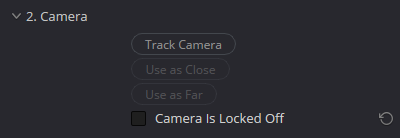
You can skip this step: Trace Ball tracks the footage first when it has not been tracked yet.
A tripod shot that never moves
Tick Camera Is Locked Off instead. Leave it off for any shot that pans, tilts or zooms.
Trace the ball
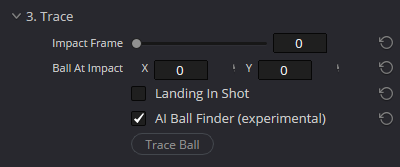
- Stay on the impact frame and press Trace Ball.
Traced N frames.
in Status means the trail is drawn.
- Press Trace Ball. It starts from the impact you set. The same small window opens, with its Cancel button.
Traced N frames.
orTrace drawn.
in Status means the trail is drawn. A longer sentence, such as the one after a trace from ball marks, shows in full on the Program Monitor.
Which frame does it start from?
The impact you recorded. With none, your Mark Is Impact mark, then your first ball mark, then the frame the playhead is on.
The ball lands in the shot
A chip, a short iron, a camera at the green: tick Landing In Shot before you trace, so every frame down to the landing is searched and the bounces and roll are followed. Leave it off for a tee shot that flies out of the picture; the physics finishes the flight.
AI Ball Finder
On by default. It helps find the ball on every frame and runs on the graphics card. The frame you trace from becomes the Impact Frame.
It says
Press Trace again to replace.
You moved a path handle by hand. Press Trace Ball again to replace your handles.
It says
No ball found.
Try ball marks, below, or see Troubleshooting.
Fix it with ball marks, if it needs it
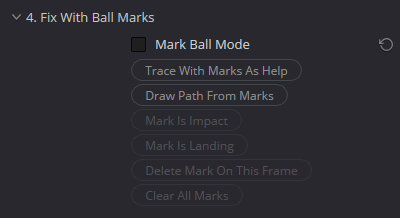
- Tick Mark Ball Mode.
- Click the ball on the frames where you can see it. A few marks are enough.
- On the impact frame press Mark Is Impact; on the landing frame, Mark Is Landing.
- Press Trace With Marks As Help or Draw Path From Marks.
- Tick Mark Ball Mode. The Program Monitor now shows only your marks.
- Click the ball in the Program Monitor on the frames where you can see it. A few marks are enough.
- On the impact frame press Mark Is Impact; on the landing frame, Mark Is Landing.
- Press Trace With Marks As Help or Draw Path From Marks.
Which of the two buttons?
Trace With Marks As Help runs the automatic trace and bends the flight to your marks where it missed them. Draw Path From Marks draws the path through your marks and nothing else.
Move or remove a mark
Click again, or drag, to move one. Delete Mark On This Frame and Clear All Marks remove them. Untick Mark Ball Mode when you are done.
Click the ball to mark a frame. A click elsewhere on that frame moves its mark, and so does a drag. Double-click a mark, or press Delete, to remove it. Delete Mark On This Frame and Clear All Marks remove them too. Ctrl+Z does not undo a mark. Untick Mark Ball Mode to get the other handles back.
What the marks look like
The mark on the frame you are parked on is a thick ring labelled with its frame. The marks on the 10 frames either side show as faint numbered rings. Mark Is Impact and Mark Is Landing show as a red dot and a red ring, labelled IMPACT and LANDING with the frame. The arrow keys stay Premiere Pro's, so step through the frames as usual.
Style the trail
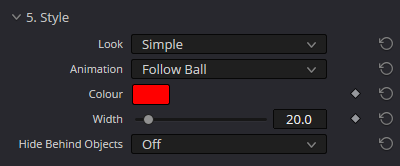
- Pick a Look and an Animation, then set Colour and Width.
Finer look: gradient, taper, shadows
Look Details has them, with the settings of each look. The default is one flat red line, 20 pixels wide, that draws on as the ball flies.
Change when the trail draws on
Reveal Timing. Park on a frame and press Reveal, Middle or Landing to set the start, the middle or the landing from the playhead.
Hide it behind a tree or a player
Hide Behind Objects. On the Fusion page you can also wire a mask into the node's Holdout input.
Hide Behind Objects. To choose which tree or player may hide the trail, tick Garbage Mask and drag its four corners in the Program Monitor. They start in the middle of the current frame. Premiere Pro has no Holdout.
The trail on its own, for compositing
Tick Transparent, in Hide and Masks.
Controls lists every row with its default.
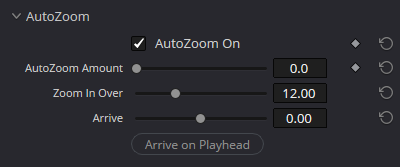
Optional: AutoZoom
- Tick AutoZoom. It is off by default, and zooms in on the ball as it lands, where the trace found the landing.
- Zoom Amount sets how close: 50 by default, 30 makes the picture about a third bigger, 100 doubles it.
- Zoom Length sets how many frames the zoom takes, 40 by default.
- Offset moves it earlier or later. Or park on the frame it should be fully in and press Offset to Playhead.
Turn it off for a while
Untick AutoZoom. Your settings are kept.
Good to know
Stop a pass
Press Esc. Press the same button again to carry on from where it stopped.
Press Cancel in the small working window. Esc, Enter and Space press it too, and so does closing the window. Cancel leaves the track as it was.
A trace stops for memory or time
See Troubleshooting for each message and its fix.
When memory runs low, the message also says what to change in Premiere Pro: in Edit → Preferences → Memory, raise RAM reserved for other applications, then trace again.
Start over
Reset Tracking, in Trace Settings, throws the stored track away. It asks for a second press first.
Where the handles and markers are
The impact and landing markers, the path handles, the bend points, the track points, the ball marks and the mask corners are drawn on the Program Monitor. The path handles and the bends have no rows in Effect Controls. Hover over one to see its name.